Driver & setup guide
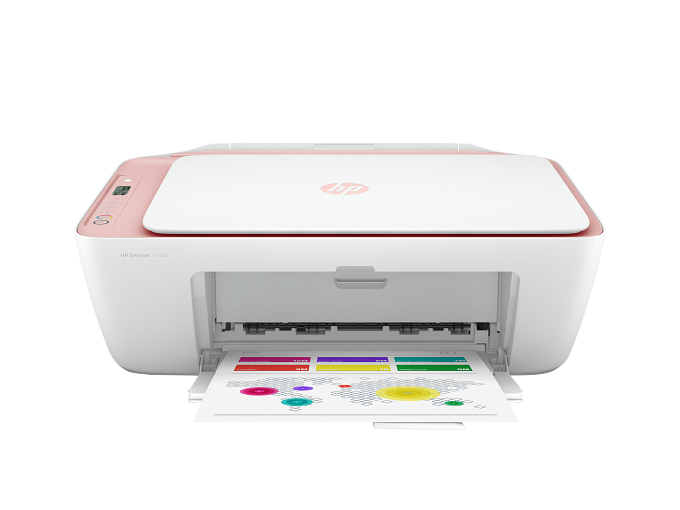
HP DeskJet 2755e
Set up this DeskJet 2700e-family all-in-one over USB or Wi-Fi. Check Windows software, Mac AirPrint and scanning separately before reinstalling a working print driver.
Driver downloads
Select your system and functions
On HP’s 2700-series page, choose your OS and read the Easy Start or full-package description to see which components it installs.
Choose the installation computer’s OS
If you are using your phone to find a driver for a computer, select that computer’s OS. Check the version and architecture if you are unsure.
Find the version and architectureBrowse all documented files (1)
Files are listed by OS. Open the source page for version details and supported systems.
- Windows 11 (x64) · Manufacturer setup packageView source
Manufacturers may update these files. Check the linked official notes before downloading.
An Easy Start Webpack is a setup package, not a driver-only file. It may still need internet access during setup.
Prepare & install
Installation steps
Windows: choose software for the full 2755e model
Keep the e suffix when identifying this DeskJet 2700e-family printer. Select your Windows version and architecture on HP’s current support page, then check the listed package’s printing and scanning components. An Easy Start setup package is not a promise of a driver-only or entirely offline installation; the 2021 manual does not establish current Windows or ARM compatibility.
Manufacturer’s instructions for this stepChoose Wi-Fi or USB before setup
For network setup, connect the computer and printer to the same local wireless network. A VPN can prevent local discovery; follow your organization’s rules before changing it. For USB setup, leave the cable disconnected until HP’s software asks. If HP+ is enabled, HP requires the printer to remain internet-connected even when printing over USB; USB is not an offline workaround for that condition.
Manufacturer’s instructions for this stepMac: separate AirPrint from scanning setup
The 2700e manual describes AirPrint printing after the printer and Mac join the same network. Add the intended device in the Mac’s printer settings and check the selected queue. This does not establish that scanning is configured: use HP’s scanning option supported on your exact macOS, select this printer and preview a document. A Windows EXE is not Mac software.
Manufacturer’s instructions for this stepStill having trouble after setup?
The printer cannot be found on Wi-Fi
Check that the computer is on the same network, not an isolated guest network. Press Wireless and Information together to print the wireless network test report and network configuration page described by HP. Use the report to check connection status and network name before repeating setup; a visible printer name alone does not prove the computer can reach it.
Manufacturer’s instructions for this stepPrinting works but scanning does not
Check the scanner selected in HP’s supported scanning software, not just the print queue. Put one new original on the scanner glass and request a preview. If the scanner is missing, confirm the same USB or network connection and the scanner components for your OS before reinstalling the printing software. Test file saving separately from successful printing.
Manufacturer’s instructions for this stepAfter installation
Print a test page
Print a fresh one-page document from this computer. If you need scanning, preview a new original on the glass, save it and open the resulting file. A successful print or an online status does not verify the scanner.
Troubleshoot printing or scanningDid this setup guide help?
Optional: send this page’s model, language, selected OS, purpose and result. No name, serial number or search terms; kept for 30 days. Your answer is user feedback, not a PDrivers hardware test.
Read about this dataDownload questions
Where do the downloads come from?
Download buttons open the manufacturer file address shown beside them. PDrivers does not store, relay or modify driver installers. Check license terms and installation requirements on the official instructions page.
My OS is missing. Is it unsupported?
Not necessarily. This list contains the exact OS/file records we have collected. Use the manufacturer’s OS selector to check. A nearby version number is not enough to establish compatibility.
Do I need the full software package?
This model has scanning hardware. For printing only, check the separate driver; for scanning, compare the scanner component, full package and supported built-in scanning options.
What if the official file link stops working?
Open the manufacturer’s support page and look for a replacement release. If the link still appears wrong, report it using the correction link below. Avoid unofficial mirrors with similar-looking names.
If it still won’t work
Troubleshoot this printer by its symptomsSources
Compiled from manufacturer support entries and collected file metadata. If this guide differs from a current official release page, follow the manufacturer’s instructions.
This guide is based on published documentation. We have not tested installation on a physical printer.
Specific sources for this model’s downloads & setup
HP DeskJet 2700e-series user guide (2021) · model-family setup; current software support must be checked separately
- HP DeskJet 2700e-series user guide (2021)Page reviewed
Reviews cover page content and the listed model, OS and instructions. Installer binaries and physical installation were not tested.
More from this manufacturer
More model guides
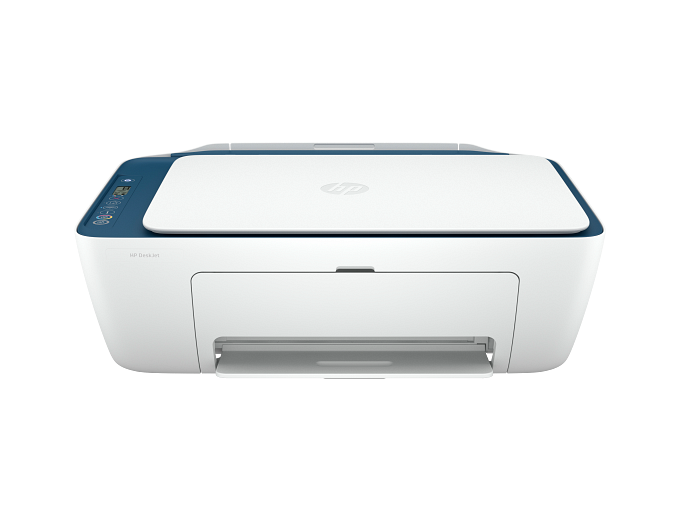
HP DeskJet 2700
Print & scan · Inkjet
The shared support page for the DeskJet 2700 family. Use the full number on the printer label to confirm your model.
Find the right download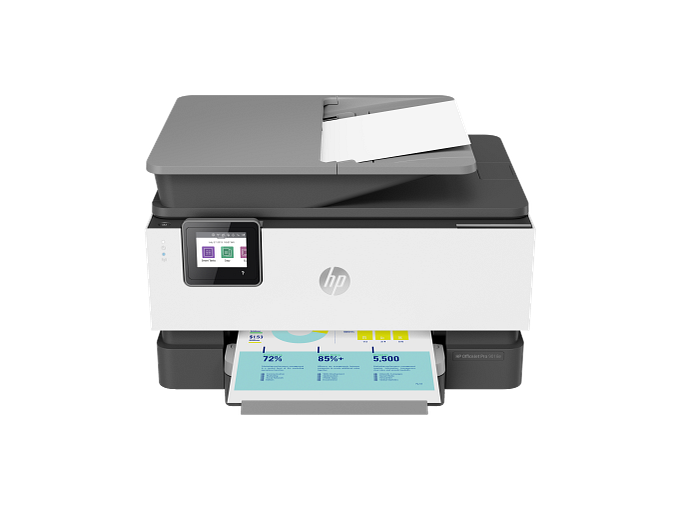
HP OfficeJet Pro 9015e
Print & scan · Inkjet
An OfficeJet Pro inkjet all-in-one covered by HP’s 9010-series support page, with software for printing and scanning.
Find the right downloadHP LaserJet Pro M15w
Print · Laser
A compact, print-only laser in HP’s M14–M17 family. The M15w model supports wireless printing.
Find the right download